
Before you hit that purchase button on Steam, Epic Games Store, or GOG, you’re probably wondering: can my computer run this game? It’s one of the most common questions gamers ask themselves, and for good reason. There’s nothing worse than buying a game only to discover your PC can barely handle it, resulting in stuttering framerates, crashes, or unplayable graphics settings. This comprehensive guide will walk you through everything you need to know about checking system requirements, understanding hardware specifications, and determining whether your machine has what it takes to run your next favorite title.
Whether you’re eyeing the latest AAA blockbuster, exploring best indie games for PC, or diving into best story games, knowing your PC’s capabilities is essential. We’ll cover everything from GPU and CPU requirements to RAM, storage, and those sneaky DirectX versions that can make or break your gaming experience. By the end of this guide, you’ll be able to confidently assess whether any game will run smoothly on your system.
Understanding Minimum vs Recommended Requirements
Every game you find on digital storefronts lists two sets of system requirements: minimum and recommended. Understanding the difference between these two is absolutely crucial to answering the question “can my computer run this game?”
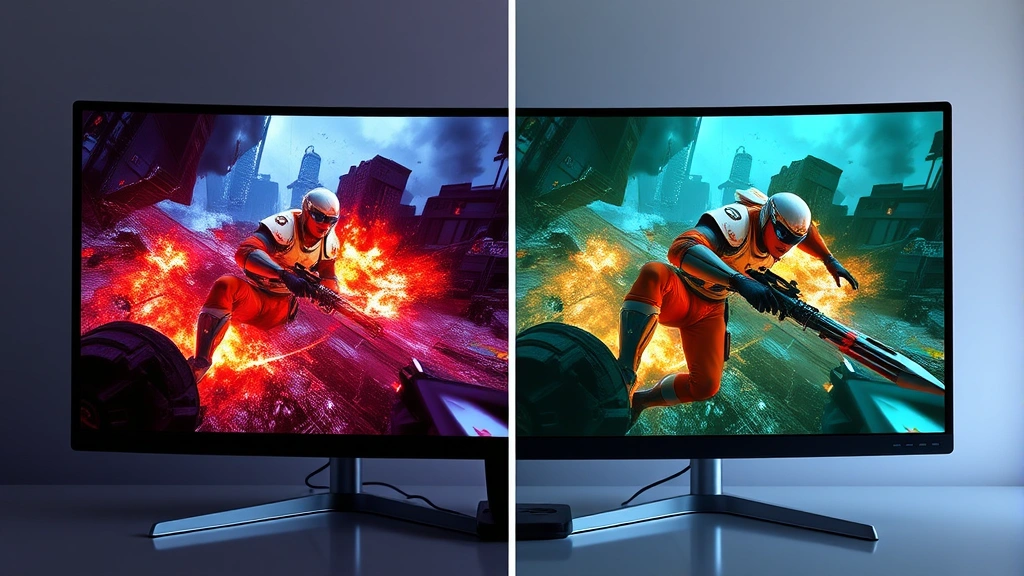
Minimum requirements represent the absolute bare-bones specifications needed to run a game at all. Meeting these specs means you’ll get the game running, but expect lower frame rates (typically 30-60 FPS), reduced graphical quality, and potentially longer loading times. Minimum specs are often listed for 1080p resolution at 30 FPS with low graphics settings. If your PC only meets minimum requirements, you might experience stuttering, lag, or visual pop-in, especially during intense action sequences.
Recommended requirements are what developers suggest for a smooth, enjoyable experience. These specs typically target 1440p resolution or 1080p at high settings with 60+ FPS. If your system meets recommended requirements, you’re looking at solid performance with good visual fidelity and stable frame rates. Many modern gamers aim for recommended specs as the sweet spot between performance and visual quality.
Beyond recommended, some AAA titles now include ultra or high-end requirements for 4K gaming at maximum settings with ray tracing enabled. These specs demand premium hardware like RTX 4080 graphics cards or newer-generation processors, and they’re intended for enthusiasts with high-end gaming rigs.
Checking Your PC Hardware Specifications
Before you can compare your system against any game’s requirements, you need to know exactly what hardware you’re working with. Fortunately, Windows makes this relatively straightforward, though the process varies slightly depending on your operating system.
For Windows 10/11 Users: Right-click on “This PC” or “My Computer” and select “Properties.” You’ll immediately see your processor name, installed RAM, and system type (64-bit or 32-bit). To find your GPU, right-click on the desktop and look for graphics control panel options. NVIDIA users will see “NVIDIA Control Panel,” while AMD users will find “AMD Radeon Settings.” Alternatively, press Windows key + R, type “dxdiag,” and open the DirectX Diagnostic Tool to view comprehensive hardware information including display devices.
For macOS Users: Click the Apple menu, select “About This Mac,” and you’ll see processor, memory, and graphics information. However, keep in mind that Mac gaming has a smaller library than Windows.
For Linux Users: Open a terminal and use commands like “lscpu” for processor info, “free -h” for RAM, and “lspci” to identify your graphics card. Linux gamers should check ProtonDB for compatibility information on games through Proton compatibility layers.
Write down your exact specifications: processor model, GPU name and VRAM amount, total RAM, and storage capacity. You’ll reference this information repeatedly when checking game requirements.
GPU and Graphics Card Requirements
Your graphics processing unit (GPU) is arguably the most important component for gaming performance. The GPU handles rendering graphics, textures, and visual effects, making it the primary determinant of frame rates and graphical quality. When checking “can my computer run this game,” the GPU requirement is typically the limiting factor.
Modern graphics cards from NVIDIA (GeForce RTX series) and AMD (Radeon RX series) list VRAM (video RAM) specifications, typically ranging from 2GB on budget cards to 24GB on enthusiast models. A game requiring an RTX 3060 with 12GB VRAM needs that specific card or better; a GTX 1660 with 6GB won’t cut it, even if it’s from the same manufacturer.
When evaluating GPU requirements, consider these factors:
- VRAM Amount: More video memory allows for higher resolution textures and more complex scenes. 4GB suffices for 1080p gaming, 6-8GB for 1440p, and 10GB+ for 4K or ultra settings.
- Generational Performance: Newer GPU generations offer better performance-per-watt. An RTX 4060 often outperforms an RTX 3070 in newer games due to architectural improvements.
- Ray Tracing Capability: NVIDIA RTX cards and AMD RDNA 2+ cards support ray tracing for realistic lighting. If a game requires ray tracing, older cards like GTX 1080 won’t support it, regardless of raw performance.
- DLSS and FSR Technologies: NVIDIA’s DLSS and AMD’s FSR use AI to upscale lower resolution renders, allowing older cards to run demanding games. Check if the game supports these technologies.
CPU Processor Requirements
While the GPU dominates frame rate performance, the CPU (processor) handles game logic, physics, AI, and overall system responsiveness. A weak CPU paired with a powerful GPU creates a bottleneck, preventing your graphics card from reaching its full potential.
Modern gaming CPUs from Intel (Core i5/i7/i9) and AMD (Ryzen 5/7/9) typically feature multiple cores and threads. Games increasingly leverage multi-core processing; a quad-core processor from 2015 won’t perform as well as a modern six-core chip, even at the same clock speeds.
When evaluating CPU requirements for answering “can my computer run this game,” consider:
- Core Count: Most modern games benefit from 6+ cores. Demanding titles like Cyberpunk 2077 or Star Citizen prefer 8+ cores for smooth performance.
- Clock Speed: Measured in GHz, higher clock speeds improve single-threaded performance, crucial for gaming. 3.5+ GHz is the modern standard.
- Cache Size: L3 cache helps processors access frequently-used data faster. More cache generally means better gaming performance.
- Generation and Architecture: Newer generations are more efficient. A current-generation i5 typically outperforms an older i7.
Check your processor against the CPU Benchmark database to compare performance scores against game requirements.
RAM Memory Needs
RAM (Random Access Memory) serves as your system’s short-term memory, holding data the CPU and GPU actively use. Unlike storage, RAM is temporary—it clears when you shut down your PC.
Gaming RAM requirements have grown steadily. A decade ago, 8GB was sufficient; today, 16GB is the standard for smooth gaming, and 32GB is becoming increasingly common for demanding titles and content creation. When checking system requirements, you’ll typically see:
- 8GB RAM: Minimum for older or indie games, tight for modern AAA titles
- 16GB RAM: Sweet spot for modern gaming, handles 1440p gaming with high settings
- 32GB RAM: Recommended for 4K gaming, streaming while gaming, or heavy multitasking
- 64GB+ RAM: Overkill for gaming alone; useful for professional work alongside gaming
Beyond capacity, RAM speed matters. DDR4 3200MHz is the baseline; DDR4 3600MHz or DDR5 offers better performance. If you’re planning a gaming PC build guide, prioritize matching RAM speed to your motherboard’s capabilities.
Modern games rarely max out RAM usage, but some open-world titles with high-resolution textures can consume 12-16GB, making 16GB necessary for comfortable performance.
Storage Space Considerations
Storage capacity determines how many games you can install simultaneously. Modern AAA games are massive—Call of Duty: Modern Warfare exceeds 150GB, Final Fantasy XIV requires 150GB+ with expansions, and Microsoft Flight Simulator demands over 100GB. These aren’t outliers anymore; they’re becoming standard.
Beyond capacity, storage type significantly impacts performance. SSDs (Solid State Drives) are essential for modern gaming:
- NVMe SSDs: Fastest option, with read speeds exceeding 3,000 MB/s. PCIe 4.0 and 5.0 drives offer even faster speeds. Ideal for 4K gaming and reducing load times.
- SATA SSDs: Older but still acceptable, with speeds around 550 MB/s. Better than traditional HDDs but slower than NVMe.
- Hard Disk Drives (HDDs): Outdated for gaming. Slow load times, stuttering, and poor performance. Avoid for modern games.
Game developers increasingly assume SSD storage, designing load times around NVMe speeds. Playing modern games on HDDs results in excessive stuttering and loading screens. Aim for at least 500GB-1TB of SSD storage dedicated to games, with a separate drive for your OS and programs if possible.
Check the game’s storage requirements against your available free space, accounting for the OS taking up 20-30GB on your primary drive.
Online Tools and System Check Resources
Manually checking every component is tedious. Fortunately, numerous online tools automate the process, letting you quickly determine if your PC can run specific games.
Can You Run It (systemrequirementslab.com): Upload your system specifications or let the site scan your PC, then search for any game. It instantly shows whether you meet minimum, recommended, or ultra requirements, highlighting any bottlenecks.
Steam System Requirements Check: Many Steam game pages include an automated system requirements checker. Log into Steam, visit a game’s page, and click “Check System Requirements” (if available).
Game-Specific Tools: Major publishers often provide their own system checkers. Epic Games Store games, EA titles, and Ubisoft games frequently include these tools.
GPU Manufacturer Tools: NVIDIA’s GeForce Experience and AMD’s Adrenaline software can scan your system and recommend optimal graphics settings for installed games.
YouTube and Gaming Benchmarks: Search for “[Game Name] [Your GPU] Performance” on YouTube to watch real-world benchmarks. Channels like TechPowerUp and Gamers Nexus provide detailed performance analysis.
These tools save enormous time compared to manually comparing specifications, making it easy to answer “can my computer run this game” before purchasing.
Common System Requirement Mistakes
Even with system requirements clearly listed, gamers frequently make mistakes when evaluating compatibility. Understanding these pitfalls helps you avoid purchasing games your PC can’t handle.
Confusing GPU Models: The most common mistake. A GTX 1080 and RTX 2060 are completely different cards from different generations. Don’t assume older or newer cards are automatically better without checking benchmarks. An RTX 3050 is weaker than an RTX 2080 Ti, despite the higher number.
Ignoring Bottlenecks: A powerful GPU with a weak CPU (or vice versa) creates performance bottlenecks. You might have an RTX 4090 but an old i5-6600K, resulting in poor gaming performance because the CPU can’t feed the GPU fast enough.
Overlooking DirectX Versions: Games often require specific DirectX versions (DirectX 12, for example). Older Windows versions or outdated drivers might not support required DirectX versions, preventing games from launching entirely.
Forgetting About Drivers: Outdated GPU drivers can cause performance issues or incompatibilities. Always update drivers before troubleshooting performance problems. NVIDIA and AMD release driver updates regularly, sometimes with substantial performance improvements for new games.
Underestimating Storage Needs: Many gamers check storage requirements but forget to account for OS space and other installed applications. A game requiring 100GB on a 256GB SSD leaves insufficient space when Windows occupies 30GB.
Assuming Recommended = Smooth 60 FPS: Recommended specifications often target 60 FPS at 1440p with high (not maximum) settings. Enabling ultra settings or pursuing 144+ FPS requires better hardware.
Ignoring OS Requirements: Some games require specific Windows versions or updates. A game requiring Windows 10 version 22H2 might not run on older Windows 10 builds, regardless of hardware.
For more insights into gaming performance, check out our guide on how to record gameplay on PC, which includes optimization tips for streaming and recording, further impacting performance considerations.
FAQ
What’s the most important component for gaming?
The GPU (graphics card) is typically the most important component, determining frame rates and maximum graphical quality. However, the CPU significantly impacts overall system responsiveness and gaming smoothness. A balanced system with good CPU and GPU performance provides the best experience.
Can I upgrade my GPU if my current card isn’t sufficient?
Yes, GPUs are easily replaceable. Unscrew your current card from the PCIe slot, remove power connectors, and install a new card. Ensure your power supply has sufficient wattage (most modern GPUs require 250-450W). Check your motherboard’s PCIe slots are compatible with your new card.
Will a game run at all if I only meet minimum requirements?
Yes, but expect poor performance. You’ll get low frame rates (20-30 FPS), reduced graphical quality, and potential stuttering. It’s playable but uncomfortable for most gamers. Aim for recommended specifications or better.
How often do system requirements increase?
Requirements grow with each generation of games, typically every 2-3 years. A PC built in 2020 might struggle with 2024 AAA releases. Future-proofing by buying slightly better hardware than currently necessary extends your PC’s lifespan.
Can I check system requirements without buying the game?
Absolutely. Every legitimate game store (Steam, Epic Games, GOG) displays system requirements on the game’s store page. Use online checker tools before purchasing to confirm compatibility.
Does resolution affect system requirements?
Significantly. 1080p gaming requires less GPU power than 1440p or 4K. System requirements typically specify target resolutions. A game requiring an RTX 3070 at 1440p might run on an RTX 3060 at 1080p.
What’s the difference between 32-bit and 64-bit systems?
64-bit systems can address vastly more RAM (theoretically up to 16 exabytes) and run more efficiently than 32-bit systems (limited to 4GB RAM). Modern gaming requires 64-bit Windows. If you’re running 32-bit Windows, upgrading to 64-bit is essential.
Should I buy a gaming laptop or desktop?
Desktops offer better performance-per-dollar, easier upgrades, and better cooling. Gaming laptops provide portability but run hotter, have limited upgrade options, and cost more for equivalent performance. Consider your lifestyle and gaming needs.
How can I improve performance if my PC is slightly below requirements?
Lower graphics settings (resolution, texture quality, effects), enable upscaling technologies like DLSS or FSR, close background applications, update drivers, and ensure your PC isn’t throttling due to heat. These adjustments might achieve playable performance even below recommended specs.
Are console ports always demanding on PC?
Not necessarily. Some console ports are well-optimized, while others are poorly optimized. Check reviews and benchmark videos before purchasing. PC versions sometimes require better hardware than the original console versions due to higher resolution targets.