
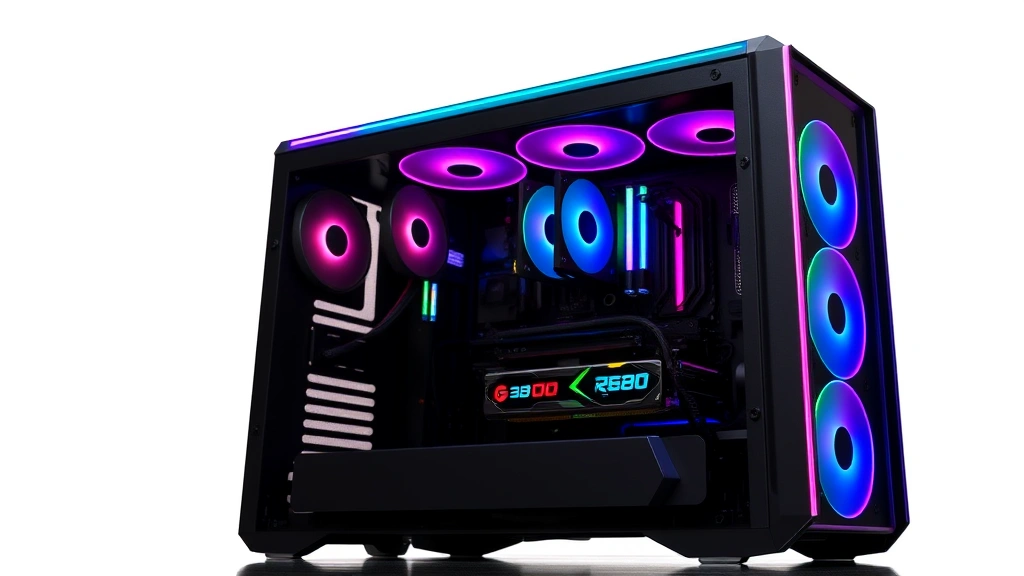
Is Your PC Game Ready? Expert Checklist
Before you launch that anticipated new title or dive into your backlog, it’s crucial to ensure your PC is genuinely game ready. A well-prepared gaming system means smoother gameplay, better frame rates, and fewer technical headaches that can ruin your experience. Whether you’re planning to explore the best games on Game Pass or tackle demanding AAA releases, this comprehensive checklist will help you optimize every aspect of your setup.
The difference between a subpar gaming experience and an exceptional one often comes down to preparation. Your PC might have impressive specs on paper, but without proper configuration, driver updates, and maintenance, you won’t unlock its true potential. This guide walks you through everything from hardware verification to software optimization, ensuring your system performs at its peak when gaming matters most.
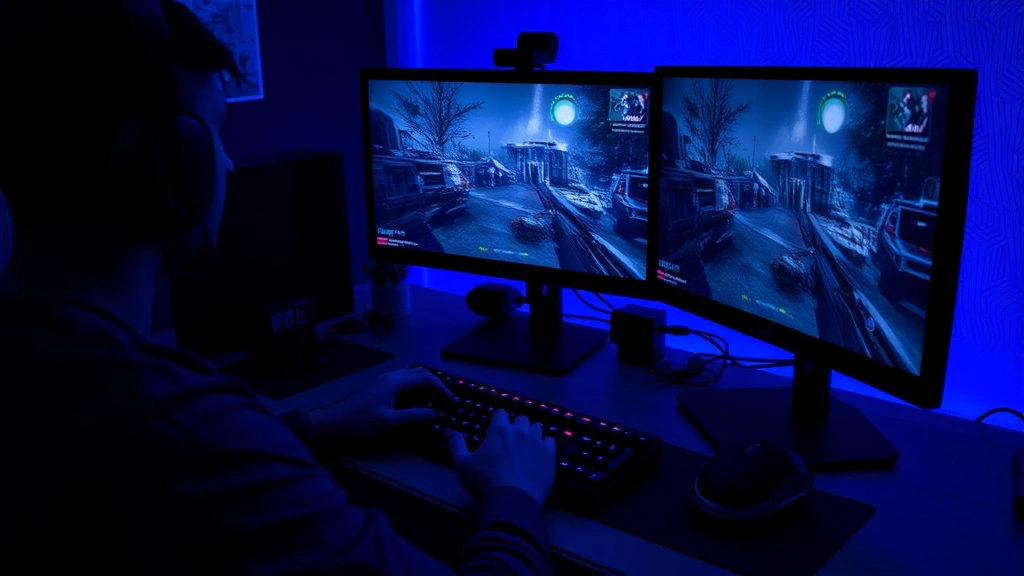
Hardware Verification Essentials
The foundation of a game ready PC starts with understanding your hardware capabilities. Begin by checking your processor, graphics card, RAM, and storage specifications against game requirements. Most modern titles list minimum and recommended specifications, and you’ll want to comfortably meet recommended specs for optimal performance.
Your graphics card is typically the most critical component for gaming performance. NVIDIA and AMD release performance benchmarks regularly, and checking NVIDIA’s official specifications or AMD’s equivalent helps you understand where your GPU stands. Run diagnostic tools like GPU-Z or CPU-Z to verify your actual hardware specifications and ensure nothing is misreported or underclocking unexpectedly.
RAM requirements have grown substantially with modern games. While 16GB is now standard, many demanding titles recommend 32GB for smooth gameplay, especially if you multitask while gaming. Check your RAM speed and ensure it matches your system’s capabilities—faster RAM can provide noticeable performance improvements in CPU-intensive games.
Temperature monitoring is equally important during this verification phase. Download tools like HWiNFO64 or MSI Afterburner to establish baseline temperatures during idle and gaming states. This helps you identify potential cooling issues before they become problems during extended gaming sessions.
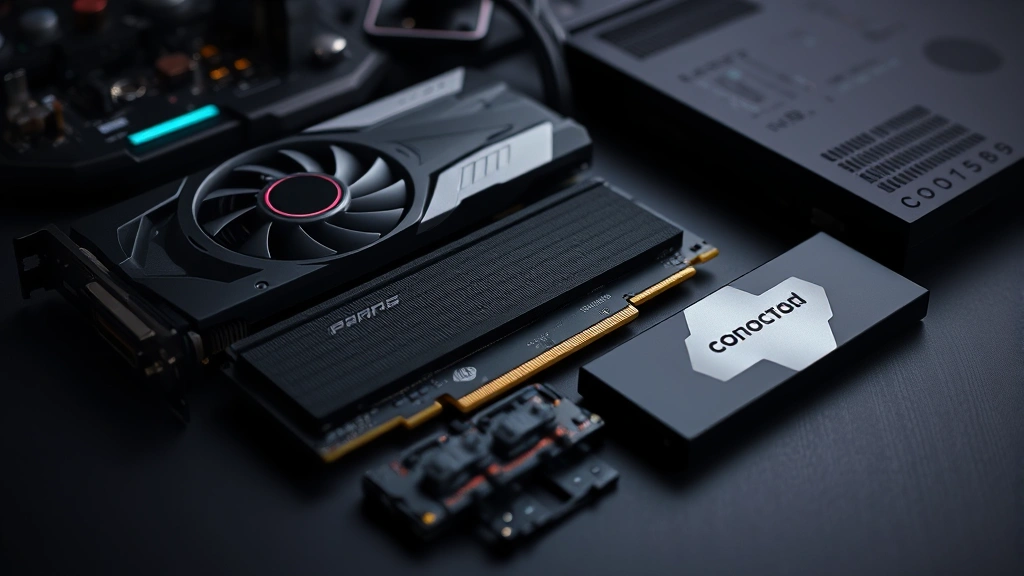
Driver Updates and Installation
Outdated drivers represent one of the most common reasons PCs underperform during gaming. Graphics drivers particularly impact gaming performance, with developers optimizing their titles around the latest driver releases. NVIDIA and AMD release new drivers monthly, often including game-specific optimizations and bug fixes.
Create a systematic driver update routine. Visit NVIDIA’s driver download page or AMD’s equivalent monthly to check for updates. Consider using automatic update tools if available, but manually verifying updates ensures you’re aware of changes and can troubleshoot if new drivers cause issues with your specific games.
Beyond graphics drivers, ensure your motherboard BIOS is current. BIOS updates can improve stability, add hardware support, and sometimes provide performance enhancements. Check your motherboard manufacturer’s website—whether ASUS, MSI, Gigabyte, or others—for the latest BIOS version and update instructions specific to your model.
Don’t overlook chipset drivers, which manage communication between your CPU and other components. These drivers often receive updates alongside graphics drivers and can significantly impact system stability. Audio drivers should also be kept current, especially if you use surround sound or high-quality gaming headsets.
Storage Management and Organization
Storage management directly affects both game loading times and overall system performance. SSDs have become essential for gaming, with most modern titles installed on solid-state drives rather than mechanical hard drives. Check your available SSD space—games increasingly require 100GB or more, and you should maintain at least 10-15% free space for optimal drive performance.
Organize your game library strategically. If you have multiple drives, consider installing demanding AAA titles on your fastest SSD while using secondary drives for best indie games for PC that require less bandwidth. This approach maximizes loading speed where it matters most.
Run disk cleanup utilities to remove temporary files, cache data, and unnecessary bloatware. Windows’ built-in Disk Cleanup tool works adequately, but third-party solutions like CCleaner provide more comprehensive cleaning. This frees up valuable storage space and can improve system responsiveness.
Consider enabling Windows’ Game Mode, which prioritizes gaming processes and reduces background system interruptions. Additionally, disable unnecessary startup programs that consume system resources. Use the Task Manager’s Startup tab to review applications launching at boot and disable those you don’t need immediately.
Performance Optimization Settings
Windows itself requires optimization for gaming performance. Navigate to your Power Settings and select the High Performance power plan, which ensures your CPU and GPU operate at maximum clock speeds rather than throttling to save power. This setting is crucial for maintaining consistent frame rates during gameplay.
Adjust your visual settings for optimal balance. Within Windows, disable unnecessary visual effects like animations and transparency effects. Right-click your desktop, select Display Settings, then Advanced Display Settings, and toggle off features like visual effects to free up GPU resources.
Many gamers overlook RAM disk setup, which can dramatically improve gaming performance. Programs like ImDisk or RamDisk create virtual drives using system RAM, allowing you to store frequently accessed game files in ultra-fast memory. This technique particularly benefits games with extensive asset streaming.
Configure your monitor settings properly. Check that your display refresh rate is correctly set in Windows Display Settings—many users run at 60Hz despite owning 144Hz or higher displays. Match your game settings to your monitor’s native resolution and refresh rate for the smoothest experience.
Explore in-game settings systematically before launching full sessions. Most modern games include detailed graphics options allowing you to balance visual quality against performance. Start with recommended settings for your hardware, then adjust specific features like shadows, reflections, and anti-aliasing based on performance metrics displayed via frame rate counters.
Connectivity and Network Setup
For online gaming and game downloads, network optimization is essential. Test your internet connection speed using Speedtest or similar tools—most online games require minimum 10Mbps, though 25Mbps or higher provides better stability for competitive gaming and streaming.
If possible, use a wired Ethernet connection rather than Wi-Fi for gaming. Ethernet provides lower latency and more consistent speeds, critical for competitive multiplayer titles. If wireless is necessary, position your router nearby and minimize interference from other devices.
Configure your router for gaming optimization. Enable Quality of Service (QoS) settings to prioritize gaming traffic, reducing latency when other household devices use bandwidth. Update your router firmware to ensure you have the latest security patches and performance improvements.
Port forwarding and UPnP settings can improve online gaming connectivity. Many routers support UPnP, which automatically opens necessary ports for gaming applications. Check your router settings and enable UPnP if available, though ensure your firewall isn’t blocking game connections.
Disable background downloads and updates before gaming sessions. Windows, Steam, and other services often update simultaneously, consuming bandwidth and CPU resources. Configure updates to occur during off-hours when you’re not gaming.
Software Preparation and Cleanup
Your gaming environment should be clean and distraction-free. Close unnecessary background applications before gaming—every running program consumes system resources that could improve gaming performance. Use Task Manager to monitor CPU and RAM usage, closing heavy applications like web browsers with numerous tabs or video conferencing software.
Disable Windows notifications during gaming sessions. These pop-ups interrupt immersion and can cause frame rate stutters. Navigate to Settings, System, Notifications, and disable notifications while in focus assist mode during gaming.
Verify your antivirus software isn’t scanning game directories continuously. Most security software allows you to exclude specific folders from real-time scanning. Add your game installation directories to your antivirus exclusions list—this improves load times without sacrificing security.
Install games from legitimate sources like Steam, Epic Games Store, or directly from publishers. Before diving into Game Pass Ultimate 12 Month subscriptions or purchasing individual titles, ensure you’re using official platforms to avoid malware and support developers.
Check game launcher requirements. Many modern games require specific launchers like Epic Games Launcher, Battle.net, or Steam. Verify these are properly installed and updated before launching games, as outdated launchers can cause connection issues or authentication failures.
Security Measures and Protection
A game ready PC must also be secure. Maintain updated antivirus and anti-malware protection—malware significantly degrades gaming performance and compromises your personal information. Windows Defender provides adequate protection for most users, though some prefer third-party solutions like Malwarebytes for additional security.
Keep Windows itself updated. Enable automatic Windows updates, which patch security vulnerabilities and often include performance optimizations. Set updates to install during off-hours to avoid interrupting gaming sessions.
Use strong passwords for your gaming accounts, particularly those linked to payment information. Enable two-factor authentication on platforms like Steam, Epic Games, and best co-op games on Steam accounts. This protects your account from unauthorized access and potential theft of valuable game libraries.
Be cautious with third-party gaming software. Avoid using cheats or hacks, which often install malware and violate terms of service. Stick with official game modifications and community-created content from trusted sources.
Monitor your system’s security regularly. Windows Security provides comprehensive protection dashboards where you can verify your antivirus status, firewall settings, and device security status. Address any warnings immediately before gaming.
Back up important game saves before major system updates or driver installations. While rare, these changes sometimes cause data loss. Cloud saves through Steam or platform-specific backup systems provide automatic protection, but local backups offer additional security.
FAQ
What’s the minimum RAM required for modern gaming?
Most modern games run on 16GB RAM, though demanding titles increasingly recommend 32GB for optimal performance, especially for high refresh rate gaming or content creation alongside gaming.
How often should I update my graphics drivers?
Check for driver updates monthly, or immediately when a major game release occurs. Developers often optimize driver releases around significant game launches.
Should I use a mechanical drive or SSD for gaming?
SSDs are strongly recommended for gaming due to dramatically faster load times. Mechanical drives are acceptable for secondary game libraries or storage, but your primary gaming drive should be SSD.
Does Game Mode actually improve gaming performance?
Yes, Windows Game Mode prioritizes gaming processes and reduces background system interruptions, resulting in more consistent frame rates and reduced stuttering.
How can I safely optimize my system without damaging it?
Stick to official optimization tools, avoid aggressive overclocking if you’re inexperienced, and maintain regular backups. Use trusted utilities and research thoroughly before making system changes.
What’s the ideal monitor setup for gaming?
Match your monitor’s refresh rate to your graphics card’s capability. A 144Hz monitor paired with a GPU achieving 144+ FPS provides the smoothest experience, though 60Hz with stable 60FPS is acceptable for casual gaming.
Can I game effectively on integrated graphics?
Modern integrated graphics handle indie games and older titles well, but dedicated graphics cards significantly outperform integrated solutions for contemporary AAA games. Check GameSpot’s graphics card recommendations for current options.
Your PC gaming experience depends entirely on preparation and maintenance. Following this comprehensive checklist ensures your system is truly game ready, capable of delivering the performance and stability every gamer deserves. Visit the GameForge Daily Blog regularly for more gaming optimization tips and recommendations.